Read your way
Open articles in your default browser, or pick a separate one for reading. Reader mode strips the page down to the text, with adjustable size. Full articles can be fetched ahead of time for offline reading.
An RSS reader that shows your feeds in the order they were published. No account, no ranking, nothing in between you and the sites you follow.
Free and open source. Android, iOS, macOS, Windows and Linux.
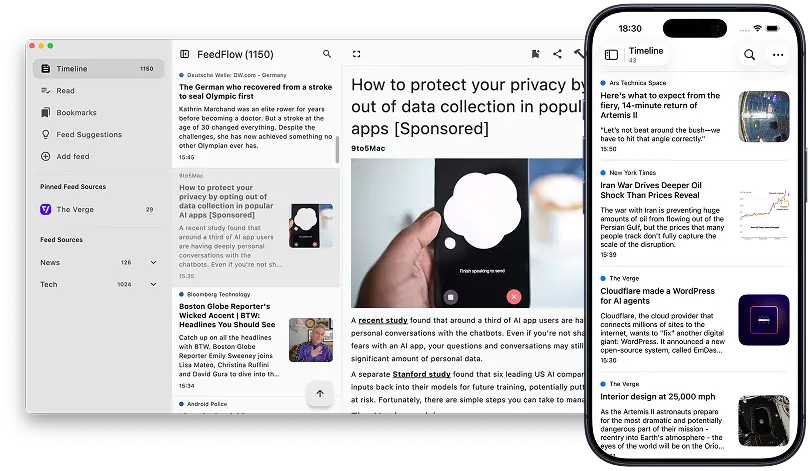
Open articles in your default browser, or pick a separate one for reading. Reader mode strips the page down to the text, with adjustable size. Full articles can be fetched ahead of time for offline reading.
Keep everything on one device, or sync through iCloud, Dropbox or Google Drive. Already run a feed server? FeedFlow connects to FreshRSS, Miniflux, Feedbin and BazQux.
Import and export OPML to move in or out of any other reader. Group feeds into categories, bookmark articles for later, hide articles containing words you block, and search everything you've fetched.
“This is the RSS reader we were all hoping for. There is NO reason a reader needs to be complex, gimmicky, or generate lock-in.”
“I love FeedFlow! It does exactly what an RSS reader should do, and has no unnecessary extras or complications… It works great on my phone, my tablet, AND on my desktop, allowing synchronisation between the devices.”
“This app is a hidden gem, it is very minimal and uses almost no disk space. It has everything you need to keep up with the news.”
“Has everything I need — a highlight is definitely the word blocklist because not many readers have that. Also automatically converts YouTube channels to RSS feeds.”
“This works great with my FreshRSS server! For the most part, it is perfect.”
“Very user-friendly, recommend to anyone interested in RSS — whether you've used an RSS reader before or you're just starting out.”
Use it on several devices and keep them in sync with iCloud, Dropbox, Google Drive or your own RSS server.
The timeline, the sidebar and reader mode on Mac, iPad, iPhone and Android.
.deb, .rpm and AppImage packages from GitHub releasesA few things aren’t available:
The .deb package targets Debian 13 and distributions based on it. On older distributions, use the Flatpak or the AppImage.
Version numbers can differ between platforms: each platform gets its fixes as soon as they’re ready, without waiting for the others.
Go to Settings → Feeds & accounts → Accounts and connect the same account on every device. FeedFlow supports two kinds of accounts:
You can connect one account at a time. Sync runs when feeds are refreshed and when you close the app; on iPhone and iPad, changes are also uploaded every couple of minutes while FeedFlow is open. Upload changes sends your latest changes right away. Your other devices pick up the changes the next time they refresh, so on iPhone and iPad, where background refresh is up to iOS, open the app to see them.
Not every account is available in every version:
| Version | iCloud | Dropbox | Google Drive | Reader services |
|---|---|---|---|---|
| iPhone, iPad, Mac (App Store) | ✓ | ✓ | ✓ | ✓ |
| Android (Google Play) | ✓ | ✓ | ✓ | |
| Android (F-Droid) | ✓ | |||
Windows, Linux .deb, .rpm, AppImage | ✓ | ✓ | ✓ | |
| Linux (Flathub) | ✓ |
F-Droid doesn’t allow the non-free Dropbox and Google libraries, and Flathub builds the app from public sources, so the private keys these services require can’t be included. To sync these versions with your other devices, use a reader service, or install the Google Play version on Android or the .deb, .rpm or AppImage package on Linux.
Mark as read when scrolling is on by default: an article counts as read once it has completely scrolled out of the list. By default, read articles don’t appear in the Timeline, so they’re gone the next time the list reloads.
To change this, go to Settings → Reading behavior:
To keep one feed unread while you scroll, open its settings and turn on Keep unread when scrolling.
The last few articles can’t scroll out of the list, so use Mark all as read at the end of the list or in the menu.
FeedFlow has no server: every check for new articles runs on your device. It checks:
Automatic checks skip a feed that was checked recently, to avoid flooding websites with requests. The wait is at least an hour, and it can grow up to a day for feeds that rarely change. A manual refresh always checks again. If one feed fails, the others are still updated.
Android: choose how often in Background sync (Settings → Sync & storage), from every 15 minutes to once a day, and optionally only on Wi-Fi or only while charging. Android can still delay the check when the battery is low or battery optimisation is on for FeedFlow.
iPhone and iPad: iOS doesn’t let apps run on a schedule, so there is no Background sync setting. When you leave FeedFlow, it asks iOS to wake it up again in about two hours. iOS decides if and when that happens: usually while the device is charging and connected to Wi-Fi, and more often for apps you open regularly. It can take many hours, or not happen at all if you haven’t opened FeedFlow for a while, if Low Power Mode is on, or if Background App Refresh is turned off for FeedFlow in the iOS Settings. Open FeedFlow to get the latest articles immediately.
Desktop: turn on Refresh while open to check for new articles while FeedFlow is running.
Import an OPML file from your current reader and start where you left off. Free, with no account to create.
Follow along
FeedFlow is built by Marco Gomiero, who posts release news and work in progress on these accounts. Code, issues and translations are public.
X
@marcoGomierBluesky
@marcogomiero.comMastodon
@marcogom@androiddev.socialGitHub
github.com/prof18/feed-flowWeblate
Help translate the app